CompTIA XK0-006 Practice Test 2026
Updated On : 18-Feb-2026Prepare smarter and boost your chances of success with our CompTIA XK0-006 practice test 2026. These CompTIA Linux+ V8 test questions helps you assess your knowledge, pinpoint strengths, and target areas for improvement. Surveys and user data from multiple platforms show that individuals who use XK0-006 practice exam are 40–50% more likely to pass on their first attempt.
Start practicing today and take the fast track to becoming CompTIA XK0-006 certified.
1700 already prepared
70 Questions
CompTIA Linux+ V8
4.8/5.0
Security
User1 reports "access denied" errors while trying to execute app. Given the following outputs:
Which of the following options will remediate this issue?
A. Providing execute permissions to user1 in the ACL
B. Modifying the permissions for others to grant read, write, and execute
C. Adding user1 to the wheel group
D. Moving app to a different folder
Explanation:
The issue is a conflict between standard Linux permissions and Access Control Lists (ACLs). Here is why user1 cannot execute the file:
Identity Check:
The id user1 output shows user1 is not the owner (devops) and is not in the owner group (devops).
Standard Permissions:
The ls -la output shows the file has a "plus" sign (-rwxrwx---+), indicating an ACL is active. In Linux, when an ACL is present, the ACL rules take precedence over the standard group permissions.
ACL Analysis:
The getfacl app output shows a specific entry for user:user1:rw.
This explicitly grants user1 read (r) and write (w) permissions.
However, it omits execute (x) permissions.
The Error:
Even though the "other" category or the group might seem to have permissions in a standard ls view, the specific ACL entry for user1 lacks the x permission. When user1 attempts to run ./app, the system checks the specific ACL entry, sees no execute bit, and returns "Permission denied."
To Fix the Issue:
Use the command: setfacl -m u:user1:rwx app
Explanation of Incorrect Answers
Modifying the permissions for others to grant read, write, and execute:
While this might technically work by opening the file to everyone, it violates the Principle of Least Privilege. Furthermore, because there is a specific ACL entry for user1, some systems will still prioritize that specific user entry over the "other" category.
Adding user1 to the wheel group:
The wheel group is typically used to grant sudo (administrative) privileges. While being a sudoer would allow user1 to run the file using sudo ./app, it does not fix the underlying file permission issue for the user's standard account. It is a security risk to grant root-level access just to run a single application.
Moving app to a different folder:
Permissions are generally tied to the file metadata (inode), not its location. Moving the file to another directory will not change the fact that the ACL explicitly restricts user1 from executing it.
Reference
CompTIA Exam Objective: Domain 1.0 (System Management) – Subsection 1.2: "Configure and manage software and permissions."
Reference: Access Control Lists (ACLs) are a core component of the Linux+ curriculum. Detailed documentation can be found in the man getfacl and man setfacl manual pages, or within the "File and Directory Permissions" chapter of the Official CompTIA Linux+ Study Guide.
Users cannot access an application that is running inside containers. The administrator wants to validate whether the containers are running. Which of the following commands should the administrator use?
A. docker start
B. docker ps
C. docker run
D. docker images
Explanation:
To validate whether containers are currently active and running, the administrator should use the docker ps command.
docker ps:
This command is specifically designed to list all running containers. By default, it displays essential information such as the Container ID, the image being used, and the current status (for example, "Up 2 minutes"). If the application is inaccessible because the container has crashed or stopped, it will not appear in this list.
Alternative for All States:
If the administrator wants to see all containers regardless of whether they are running or stopped, they would use docker ps -a.
Why Other Options Are Incorrect:
docker start:
This command is used to resume or start one or more stopped containers. It does not list the current status of all containers on the system.
docker run:
This command is used to create and start a new container from an image. It is used for deployment rather than validation of existing container states.
docker images:
This command lists the images currently stored locally on the host. It provides no information about whether any containers are actually running based on those images.
Users cannot access a server after it has been restarted. At the server console, the administrator runs the
following commands;
Which of the following is the cause of the issue?
A. The DNS entry does not have a valid IP address.
B. The SSH service has not been allowed on the firewall.
C. The server load average is too high.
D. The wrong protocol is being used to connect to the web server.
Explanation:
Looking at the outputs:
ss -lnt:
Shows that port 22 (SSH) is listening, meaning the SSH daemon is running.
ping server1 -c 5:
Succeeds, so the server is reachable on the network.
uptime:
Shows a very low load average (0.05, 0.07, 0.07), so performance is not the issue.
firewall-cmd --list-all:
Shows allowed services: cockpit dhcp dhcpv6-client dns dns-over-tls https.
Notice that SSH is missing from the allowed services list.
This means the firewall is blocking SSH connections, even though the service is running and the server is reachable.
Why the Other Options Are Wrong
The DNS entry does not have a valid IP address:
Ping to server1 succeeds, so DNS resolution and IP connectivity are functioning correctly.
The server load average is too high:
Load averages are very low, so performance is not the cause.
The wrong protocol is being used to connect to the web server:
The issue is with SSH access, not HTTP or HTTPS.
Reference
man firewall-cmd (Linux manual)
CompTIA Linux+ XK0-006 Exam Objectives: Security and Access Control (Domain: Security)
Red Hat / Fedora Documentation: firewalld services
Which of the following commands should a Linux administrator use to determine the version of a kernel module?
A. modprobe bluetooth
B. lsmod bluetooth
C. depmod bluetooth
D. modinfo bluetooth
Explanation:
The modinfo command is specifically designed to display information about Linux kernel modules, including their version, description, author, parameters, and dependencies.
What modinfo bluetooth Shows:
When you run modinfo bluetooth, you'll get output similar to:
filename: /lib/modules/5.14.0/kernel/net/bluetooth/bluetooth.ko
alias: net-pf-31
alias: af-bluetooth
license: GPL
version: 2.22
description: Bluetooth Core ver 2.22
author: Marcel Holtmann
srcversion: 5E7B3A1F2C8D9E4F5G6H7
depends: ecdh_generic,rfkill,crc16
retpoline: Y
intree: Y
name: bluetooth
vermagic: 5.14.0 SMP mod_unload modversions
The version field directly shows you which version of the kernel module is installed on the system.
Why Other Options Are Incorrect:
❌ modprobe bluetooth
This command is used to load kernel modules into the Linux kernel.
modprobe intelligently handles dependencies and loads required modules automatically.
Example: sudo modprobe bluetooth would load the Bluetooth module and its dependencies.
It does NOT show version information.
❌ lsmod bluetooth
This command lists currently loaded kernel modules.
Format: lsmod shows module name, size, usage count, and dependent modules.
Example output: bluetooth 786432 12
It does NOT show version information, only that the module is loaded.
Note: lsmod does not typically accept a module name as an argument; you would need to pipe to grep: lsmod | grep bluetooth.
❌ depmod bluetooth
This command generates module dependency files (modules.dep and map files).
It analyzes symbol requirements to determine which modules depend on others.
Used primarily during kernel builds or after installing new modules.
It creates dependency information but does not display module version details.
Reference:
modinfo extracts information from Linux kernel modules.
The information comes from the module file itself (.ko file) located in /lib/modules/$(uname -r)/.
Module versions help determine feature availability and compatibility.
They are critical for troubleshooting driver-related issues and ensuring correct hardware support.
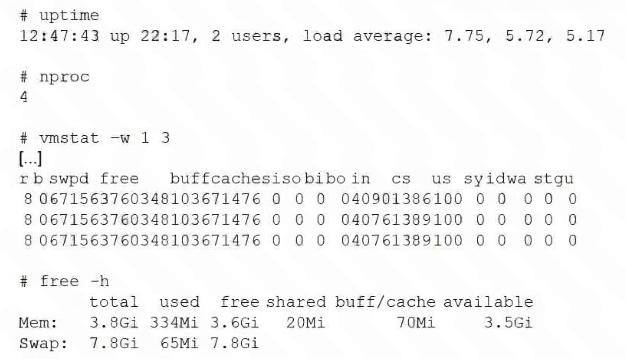
A Linux administrator receives reports that an application hosted in a system is not completing tasks in the
allocated time. The administrator connects to the system and obtains the following details:
Which of the following actions can the administrator take to help speed up the jobs?
A. Increase the amount of free memory available to the system.
B. Increase the amount of CPU resources available to the system.
C. Increase the amount of swap space available to the system.
D. Increase the amount of disks available to the system.
Explanation:
The system is experiencing a CPU bottleneck, which is preventing the application from completing tasks on time. We can determine this by looking at three key metrics in the output:
Load Average vs. Core Count:
The uptime command shows a 1-minute load average of 7.75. However, the nproc command shows the system only has 4 CPU cores. In Linux, a load average significantly higher than the number of cores (7.75 > 4) indicates that processes are queuing and waiting for CPU time.
Process Queue (vmstat):
Looking at the vmstat -w 1 3 output, the 'r' column (runnable processes) shows a value of 8. This means there are 8 processes either running or waiting for a CPU cycle. With only 4 cores, at least 4 processes are constantly stalled in the queue.
CPU Utilization (vmstat):
The us (user) column is at 100, and id (idle) is at 0. This confirms the CPUs are fully saturated by user-space applications with zero idle time available.
Increasing CPU resources (adding more vCPUs or upgrading the processor) is the only way to resolve a queue of 8 processes competing for 4 cores.
Explanation of Incorrect Answers
Increase the amount of free memory available to the system:
The free -h output shows that the system has 3.5Gi available out of 3.8Gi total. The system is barely using RAM (only 334Mi used). Adding more memory will not help because the current memory is not being fully utilized.
Increase the amount of swap space available to the system:
The free -h output shows that swap usage is negligible (65Mi used out of 7.8Gi). Furthermore, the vmstat output shows 0 in the si (swap in) and so (swap out) columns, proving there is no memory pressure or swapping activity causing the slowdown.
Increase the amount of disks available to the system:
In the vmstat output, the bi (blocks in) and bo (blocks out) columns are 0, and the wa (I/O wait) column is also 0. This indicates that the system is not waiting on disk operations; the bottleneck is purely CPU-related.
Reference
CompTIA Exam Objective: Domain 5.0 (Troubleshooting) – Subsection 5.2: "Troubleshoot system-related issues" (focusing on CPU, memory, and I/O performance monitoring).
Reference: The Linux Command Line (William Shotts), Chapter 10: Processes; and Official CompTIA Linux+ Study Guide, Chapter on Performance Monitoring and Tuning.
A junior system administrator removed an LVM volume by mistake.
INSTRUCTIONS
Part 1
Review the output and select the appropriate command to begin the recovery process.
Part 2
Review the output and select the appropriate command to continue the recovery process.
Part 3
Review the output and select the appropriate command to complete the recovery process and access the
underlying data.
Explanation:
When an LVM volume is accidentally removed, Linux provides built-in metadata backups that allow for recovery. The following three-part process is the standard way to restore a deleted volume and its data.
Part 1: Begin the Recovery Process
The administrator must first identify the correct metadata backup file. LVM automatically stores metadata archives in /etc/lvm/archive.
Command: vgcfgrestore --list
Explanation: This command lists all available archived metadata for the specified Volume Group. The administrator should identify the archive file created just before the lvremove command was executed.
Part 2: Continue the Recovery Process
Once the correct archive file (for example, /etc/lvm/archive/vgname_00001-123456.vg) is identified, the metadata must be restored to the physical disks.
Command: vgcfgrestore -f
Explanation: This command overwrites the current (incorrect) LVM metadata on the disks with the configuration from the backup file. This effectively re-creates the logical volume entry in the system configuration.
Part 3: Complete the Recovery and Access Data
After restoring the metadata, the recovered volume is often in an inactive state and cannot be mounted yet.
Command: lvchange -ay
Explanation: The -ay flag (active: yes) activates the logical volume, making it available as a block device (for example, under /dev/mapper/). Once active, the administrator can mount the volume to access the underlying data.
A new drive was recently added to a Linux system. Using the environment and tokens provided, complete the
following tasks:
• Create an appropriate device label.
• Format and create an ext4 file system on the new partition.
The current working directory is /.
Explanation:
The PBQ is an interactive simulation using parted in a graphical or dropdown-style interface (common in CompTIA Linux+ exams like XK0-005 and XK0-006 performance-based questions). The goal is to prepare a newly added drive: create a partition table (disk label), create a partition covering the full disk (or a large portion), and format it as ext4.
From the screenshots:
The interface shows repeated "Select object" dropdowns (likely for choosing the device, then partition type, filesystem type, and size).
Devices listed include /dev/sda, /dev/sdb, /dev/sdc, /dev/sdd, along with options such as primary, msdos, gpt, ext4, and sizes like 1GiB, 10GiB, or 100%.
Some dropdowns show selected items such as /dev/sdc, primary, ext4, msdos, or gpt.
One frame implies mklabel via selection of label type (msdos or gpt).
Another shows mkpart configuration with primary, ext4, and start/end values like 1 to 100%.
Final frames indicate mkfs.ext4 or equivalent formatting.
Step-by-Step Solution (Typical Sequence for This PBQ)
Create an Appropriate Device Label (Initialize the Partition Table)
Run parted on the new disk and use mklabel.
For modern systems, gpt is preferred. For legacy compatibility in exams, msdos (MBR) is often accepted.
Select the new drive (typically /dev/sdc or /dev/sdd — the one without existing partitions).
Select mklabel (or equivalent create label option).
Choose gpt (or msdos if required).
This completes the first task: creating the device label.
Create the Partition
After mklabel, create a new partition covering the disk.
Select the disk again if necessary.
Use mkpart (create partition option).
Partition type: primary.
Filesystem type: ext4 (sets partition type, not formatting yet).
Start: 1MiB (or 1, 0%, depending on options available).
End: 100% (or full disk size shown).
This creates a partition such as /dev/sdc1 covering the entire disk.
Format and Create an ext4 File System
Exit parted if necessary (quit).
Use mkfs.ext4 on the newly created partition.
Example: mkfs.ext4 /dev/sdc1 (adjust device name as needed).
This formats the partition with the ext4 filesystem.
Summary of Commands (In Order)
Launch parted on the new drive: parted /dev/sdc (or the correct new device).
Inside parted:
mklabel gpt (or mklabel msdos).
mkpart primary ext4 1MiB 100%.
print (optional verification).
quit
Then format:
mkfs.ext4 /dev/sdc1
Key Tips for the Exam Simulation:
The new drive is usually /dev/sdc or similar (not /dev/sda, which is often the system disk). Choose the device without existing partitions.
Dropdowns are sequential: select device → mklabel → label type → mkpart → primary → ext4 → start/end.
After partitioning, the simulation may display the new partition (for example, /dev/sdc1).
For formatting, select mkfs.ext4 and choose the new partition.
Mounting is not required unless explicitly stated in the task.
This aligns with standard CompTIA Linux+ storage objectives related to partitioning and formatting disks.
Which of the following utilities supports the automation of security compliance and vulnerability management?
A. SELinux
B. Nmap
C. AIDE
D. OpenSCAP
Explanation:
OpenSCAP (Open Security Content Automation Protocol) is a framework designed specifically for:
✅ Security compliance automation
✅ Vulnerability assessment
✅ Configuration auditing
✅ Policy enforcement
✅ Automated security scanning against standards
It uses standardized security content such as:
SCAP
CVE (Common Vulnerabilities and Exposures)
OVAL definitions
CIS benchmarks
DISA STIG profiles
Example Usage:
oscap xccdf eval --profile stig /usr/share/xml/scap/...xml
This command scans a system and automatically reports compliance status.
Why the Other Options Are Incorrect
❌ SELinux
Mandatory Access Control (MAC) system.
Enforces runtime security policies.
Does not perform compliance scanning or vulnerability management.
❌ Nmap
Network scanner.
Used for port scanning and service discovery.
Not a compliance automation tool.
❌ AIDE
Advanced Intrusion Detection Environment.
File integrity checker that detects file changes.
Does not manage vulnerabilities or compliance policies.
Linux+ XK0-006 Exam Tip
Memorize this mapping:
Tool → Purpose
SELinux → Access control enforcement
Nmap → Network scanning
AIDE → File integrity monitoring
OpenSCAP → Compliance and vulnerability automation
Exam Keyword Trigger:
If you see automation, compliance, and vulnerability management together, think OpenSCAP immediately.
A systems administrator needs to integrate a new storage array into the company's existing storage pool. The administrator wants to ensure that the server is able to detect the new storage array. Which of the following commands should the administrator use to ensure that the new storage array is presented to the systems?
A. lsscsi
B. lsusb
C. lsipc
D. lshw
Explanation:
The question focuses on ensuring a Linux system can detect and present a newly integrated storage array (for example, SAN-attached via Fibre Channel, iSCSI, or direct-attached SCSI/SAS) in the existing storage pool. In Linux, storage arrays (LUNs) are typically presented as SCSI devices, even for SATA in many cases and especially for FC, iSCSI, or SAS arrays.
lsscsi — Correct Utility
lsscsi lists all SCSI devices, including disks from storage arrays, with details such as host:channel:target:lun (HCTL), vendor, model, device type (disk), and device node (/dev/sdX).
Running lsscsi (often with options like -g for generic devices or --transport for FC/iSCSI details) confirms whether new array LUNs are visible to the kernel after zoning, masking, or LUN mapping on the storage side.
If the array does not appear, it may indicate HBA driver issues, multipath configuration problems, or the need for a rescan (for example, echo "- - -" > /sys/class/scsi_host/hostX/scan or using rescan-scsi-bus.sh). However, the question asks for the command used to verify visibility, and lsscsi is the standard tool for that purpose in Linux+ contexts.
Example output:
[2:0:0:1] disk DELL PERC H730 2.05 /dev/sdb
This indicates the new array LUN is detected.
Why the Other Options Are Incorrect
lsusb
Lists USB devices and controllers only. It is not relevant for SAN, DAS SCSI/SAS, FC, or iSCSI storage arrays.
lsipc
Lists IPC (Inter-Process Communication) facilities such as message queues, semaphores, and shared memory. It is unrelated to hardware or storage detection.
lshw
Lists detailed hardware information including CPU, memory, network, storage controllers, and disks. While it can show storage devices, it is general-purpose and verbose. It does not specifically focus on SCSI-level presentation like lsscsi, which is preferred for SAN/SCSI verification in exam scenarios.
Why lsscsi Fits Best
CompTIA Linux+ (XK0-006) includes hardware detection and storage management objectives.
Linux administrators commonly use lsscsi to confirm new LUNs or arrays are visible after adding them to a storage pool, especially after rescanning or reloading multipath configurations.
Reference
man lsscsi (from the sg3_utils package)
Red Hat and CompTIA-aligned documentation on SCSI rescan and device listing
Common Linux+ exam patterns for storage hardware verification
Choose lsscsi. If the new array still does not appear, follow up with SCSI rescan procedures, but the correct verification command is lsscsi.
A systems administrator wants to review the logs from an Apache 2 error.log file in real time and save the information to another file for later review. Which of the following commands should the administrator use?
A. tail -f /var/log/apache2/error.log > logfile.txt
B. tail -f /var/log/apache2/error.log | logfile.txt
C. tail -f /var/log/apache2/error.log >> logfile.txt
D. tail -f /var/log/apache2/error.log | tee logfile.txt
Explanation:
This command fulfills both requirements of the request: viewing logs in real time and saving the output to a file.
tail -f:
The -f (follow) flag causes the command to remain open and display new lines as they are added to the error.log file in real time.
The Pipe (|):
The pipe sends the standard output of the tail command to the next utility in the command chain.
tee:
This utility is essential for this task. It acts like a T-splitter, sending the data to standard output (the terminal screen) so it can be viewed live, while simultaneously writing it to the specified file (logfile.txt).
Explanation of Incorrect Answers
tail -f /var/log/apache2/error.log > logfile.txt:
The > operator redirects output to a file. While this saves the information, it does not display the logs on the screen in real time. The terminal would appear blank while the file is being written.
tail -f /var/log/apache2/error.log | logfile.txt:
This is syntactically incorrect. A pipe must be followed by a command, not a filename. The shell would attempt to execute logfile.txt as a program and return an error.
tail -f /var/log/apache2/error.log >> logfile.txt:
The >> (append) operator sends output to a file without displaying it to the terminal. Although it prevents overwriting existing content, it still does not allow real-time viewing on the screen.
Reference
CompTIA Exam Objective: Domain 1.0 (System Management) – Subsection 1.1: Summarize and utilize Linux command line tools.
CompTIA Exam Objective: Domain 5.0 (Troubleshooting) – Subsection 5.1: Analyze and troubleshoot system-related issues via logs.
Reference: Linux manual pages (man tee, man tail) and the Official CompTIA Linux+ Study Guide, Chapter on Text Processing and Log Management.
| Page 1 out of 7 Pages |