Free CompTIA 220-1202 Practice Questions 2026 - Page 12

Which of the following describes an attack in which an attacker sets up a rogue AP that tricks users into connecting to the rogue AP instead of the legitimate network?
A. Stalkerware
B. Evil twin
C. Tailgating
D. Shoulder surfing
Explanation:
An evil twin attack involves an attacker setting up a rogue wireless access point (AP) that uses the same SSID (network name) as a legitimate network. Users unknowingly connect to the rogue AP, thinking it’s the real one. The attacker can then intercept network traffic, steal credentials, or launch further attacks. This is a common wireless threat in public places like airports or cafés.
Wrong Answers
A. Stalkerware
Stalkerware is spyware secretly installed on a device to monitor activities, track location, or steal information. It doesn’t involve setting up rogue Wi-Fi networks.
C. Tailgating
Tailgating is a physical security breach where an unauthorized person follows an authorized person into a secure area without proper credentials. It’s a physical, not network-based, attack.
D. Shoulder surfing
Shoulder surfing involves watching someone enter sensitive information (like passwords or PINs) over their shoulder. It’s a visual spying technique, not a wireless network attack.
Performance on a user’s smartphone is degrading. Applications take a long time to start, and switching between windows also takes a long time. Which of the following diagnostic steps should a mobile technician take first?
A. Restore the phone to factory settings
B. Restart the phone
C. Check the phone’s battery state
D. Uninstall unneeded applications
Explanation:
Restarting the phone is the quickest and least intrusive step to troubleshoot sluggish performance. Mobile devices can slow down over time due to memory leaks, background processes, or cached data consuming resources. A reboot clears temporary files, refreshes memory, and can resolve many minor issues without changing user data. It’s a best practice for initial troubleshooting because it’s simple, fast, and avoids unnecessary data loss or major changes to the device. If performance problems persist after restarting, the technician can proceed to deeper troubleshooting, like checking apps, storage, or running updates. Always start with the simplest solution before moving to complex steps.
Wrong Answers
A. Restore the phone to factory settings
Factory resetting wipes all user data, apps, and settings, returning the phone to its original state. Although this can resolve severe performance issues, it’s an extreme measure and should be a last resort after trying less disruptive steps. It’s unnecessary as a first step because many slowdowns are caused by temporary factors like memory usage or running apps. Technicians should try restarting, clearing caches, or removing problematic apps before recommending a factory reset to avoid data loss and inconvenience for the user. Factory resets are valuable tools but should be used carefully and only when absolutely needed.
C. Check the phone’s battery state
A bad battery can cause shutdowns or power issues, but it’s unlikely to be the cause of apps starting slowly or windows lagging. Battery health is important for overall device operation, but it doesn’t directly impact performance unless the device throttles its speed to conserve energy. In this scenario, performance degradation is more likely due to software or memory issues, not battery problems. Checking the battery is useful if the phone is randomly powering off, overheating, or draining quickly, but it’s not the best first step for slow app performance or UI responsiveness problems on a mobile device.
D. Uninstall unneeded applications
Removing unused apps can help free up storage space and reduce background processes, which may improve performance. However, it’s not the very first step a technician should take when troubleshooting slow performance. Restarting the device first is simpler and might resolve temporary performance issues immediately. Uninstalling apps should be considered if the problem persists after a restart, particularly if storage is nearly full or certain apps are known to cause slowdowns. Removing apps unnecessarily could inconvenience the user, so technicians should confirm that uninstalling is necessary. It’s a helpful step, but not the immediate first action for basic troubleshooting.
A computer technician is implementing a solution to support a new internet browsing policy for a customer's business. The policy prohibits users from accessing unauthorized websites based on categorization. Which of the following should the technician configure on the SOHO router?
A. Secure management access
B. Group Policy Editor
C. Content filtering
D. Firewall
Explanation:
Content filtering blocks or restricts access to specific websites or types of online content based on categories like gambling, social media, adult material, or streaming sites. On a SOHO (Small Office/Home Office) router, this feature allows administrators to enforce internet usage policies for all users on the network. By setting up content filtering, the technician can ensure employees comply with the new browsing policy and reduce security risks from visiting unauthorized or malicious websites. Content filtering is commonly used in business environments to maintain productivity, protect against harmful sites, and comply with organizational policies or legal requirements for internet use.
Wrong Answers
A. Secure management access
Secure management access protects the router’s administrative interface, ensuring only authorized users can change settings by requiring strong passwords, encryption, or limited access from trusted devices. While essential for security, it doesn’t restrict users from accessing certain websites. Secure management prevents unauthorized configuration changes but isn’t related to filtering web content based on categories. It’s an important security measure for safeguarding network devices but does not enforce browsing policies. A technician would configure secure management access to keep the router settings safe but would still need to enable content filtering separately to block specific internet categories per company policy.
B. Group Policy Editor
Group Policy Editor is a tool used in Windows environments to control settings across user accounts or computers, including security policies and restrictions. However, it’s not used on SOHO routers and doesn’t apply to all devices on a network unless they’re part of a Windows domain. While Group Policy can block websites on domain-joined Windows machines, it’s not practical for managing internet access on mixed environments with multiple device types. In a small business using a SOHO router, content filtering on the router itself is a better solution because it controls web access for every device, regardless of operating system or platform.
D. Firewall
A firewall controls network traffic by allowing or blocking specific IP addresses, ports, or protocols for security purposes. While it’s crucial for protecting the network from threats, it doesn’t categorize or block websites based on content. Firewalls are excellent for preventing unauthorized access, blocking malicious traffic, and defining rules for services like VPNs or remote management. However, they can’t automatically filter web categories like “social media” or “adult content” without integration with more advanced filtering tools. For a policy focused on restricting specific website categories, content filtering is the appropriate choice, whereas firewalls are better suited for broader traffic control and protection.
Which of the following prevents forced entry into a building?
A. PIV card
B. Motion-activated lighting
C. Video surveillance
D. Bollard
Explanation:
A bollard is a sturdy vertical post installed around buildings, entrances, or sidewalks to block vehicles from ramming into structures. It prevents forced entry by stopping cars or trucks used as battering rams in attacks or robberies. Bollards are made of steel or concrete and can be decorative or purely functional. They’re commonly used in front of banks, storefronts, or government buildings to protect pedestrians and infrastructure from accidental collisions or deliberate attacks. Unlike electronic security measures, bollards provide physical resistance and help create a secure perimeter that vehicles cannot breach, significantly improving building security against forced vehicle entry threats.
Wrong Answers
A. PIV card
A PIV (Personal Identity Verification) card is a secure ID card used for authenticating individuals who want to access a building or secure system. It prevents unauthorized people from entering by verifying their identity electronically. However, it does nothing to physically block vehicles or prevent forced structural entry. PIV cards help control who walks through doors, but they can’t stop a vehicle crashing into a building or a physical attack. While crucial for access control and cybersecurity, PIV cards are part of logical and personnel security rather than physical barriers that defend against forced entry using vehicles or other physical force.
B. Motion-activated lighting
Motion-activated lighting turns on when movement is detected nearby. It deters intruders by making them visible and signaling that an area is monitored. However, lights alone can’t physically prevent someone or a vehicle from breaking into a building. They’re an excellent deterrent but provide no structural resistance. Motion-activated lights are valuable for reducing criminal activity by increasing visibility and attracting attention to suspicious behavior. Still, they don’t stop cars from crashing into doors or walls. Physical barriers like bollards are needed to physically block forced entry attempts, while motion lighting serves more as a preventive and alerting security measure.
C. Video surveillance
Video surveillance uses cameras to monitor and record activities in and around a building. It’s valuable for evidence collection and deterrence because people are less likely to commit crimes when they know they’re being recorded. However, cameras can’t physically stop an intruder or vehicle from breaking into a building. They’re a passive security measure that documents incidents but doesn’t physically block entry. Video surveillance can help identify suspects and understand how a forced entry occurred, aiding investigations and future security improvements. Nonetheless, physical security measures like bollards are essential to physically prevent vehicles or individuals from forcing entry into secured structures.
An organization sees unauthorized apps installed and licensing prompts. What should the security team do?
A. Deploy an internal PKI to filter encrypted web traffic.
B. Remove users from the local admin group.
C. Implement stronger controls to block suspicious websites.
D. Enable stricter UAC settings on Windows.
Explanation:
Local administrator rights allow users to install software and change system settings without restriction. If unauthorized apps are appearing and licensing prompts keep popping up, it likely means users have excessive privileges. By removing users from the local admin group, the security team limits their ability to install software without IT approval, reducing the risk of malware, unauthorized apps, and compliance issues. Standard user accounts prevent changes to critical system configurations, enforcing better security practices and minimizing potential threats. It’s one of the most effective ways to protect systems from user-driven security incidents and to maintain control over software installations across the organization.
Wrong Answers
A. Deploy an internal PKI to filter encrypted web traffic.
Deploying an internal Public Key Infrastructure (PKI) allows organizations to issue digital certificates and inspect encrypted HTTPS traffic for security threats. While PKI helps detect malicious activity hidden in secure channels, it’s unrelated to stopping users from installing unauthorized software. Filtering traffic can help block malicious downloads, but it doesn’t address the root cause here—users having administrative privileges. Without removing admin rights, users could still install applications locally from other media like USB drives. PKI is a valuable tool in enterprise security architecture, but it’s not the immediate fix for preventing unauthorized software installations tied to local admin rights on user devices.
C. Implement stronger controls to block suspicious websites.
Blocking suspicious websites helps prevent users from downloading malware or accessing malicious content. However, unauthorized software installations can occur even from legitimate-looking websites or physical media, especially if users have admin rights. Stronger web controls reduce the chance of initial malware infections but don’t solve the problem of users installing software at will. The core issue here is excessive user permissions, which enable users to bypass security policies. While web filtering is an excellent part of a layered security approach, it doesn’t fully prevent the installation of unauthorized apps if users retain administrative privileges on their systems.
D. Enable stricter UAC settings on Windows.
User Account Control (UAC) prompts users to confirm or enter admin credentials before performing actions that could change system settings. Raising UAC settings provides an extra warning step but doesn’t fully stop users with admin rights from approving those changes themselves. If users remain in the local admin group, they can simply click “Yes” to proceed. UAC is useful for preventing accidental changes and providing a barrier against malware silently installing itself, but it’s not as effective as removing administrative privileges entirely. For organizations struggling with unauthorized apps, removing users from the admin group is a stronger, more definitive solution than relying on UAC prompts.
A technician needs to map a shared drive from a command-line interface. Which of the following commands should the technician use?
A. pathping
B. nslookup
C. net use
D. tracert
Explanation:
The net use command maps a network shared folder to a drive letter in Windows. For example, running net use Z: \\Server\Share connects the network share to drive letter Z: so the user can access it like a local folder. This is helpful for accessing files across a network without navigating manually through network paths each time. The net use command also allows specifying credentials if the user needs to authenticate to the shared resource. It’s a critical tool for technicians working with shared resources in business environments, making it fast and efficient to connect to network drives directly from the command line.
Wrong Answers
A. pathping
pathping is a network utility combining the functions of ping and tracert. It checks the route to a network host and measures packet loss at each hop. It’s helpful for diagnosing network performance issues but has nothing to do with mapping shared network drives. Pathping identifies bottlenecks or connectivity problems on a network route but cannot connect a user to shared folders. While a powerful troubleshooting tool for network paths, it’s irrelevant when the technician’s goal is to assign a drive letter to a shared resource for file access. Mapping drives requires the net use command instead.
B. nslookup
nslookup helps resolve domain names to IP addresses and diagnose DNS issues. For example, it can show the IP address associated with a web domain or identify problems with name resolution. Although useful for verifying that a network resource exists, it doesn’t map network shares or assign drive letters. It’s strictly for querying DNS information, not for connecting to file shares or managing network drives. Technicians often use nslookup while troubleshooting internet or network name resolution problems, but for mapping drives to shared folders, the proper tool is net use, not nslookup.
D. tracert
tracert (short for trace route) shows the path packets take from the user’s computer to a destination host, listing each hop’s IP address and response time. It’s valuable for finding delays or connection issues along a network route. However, it cannot map network drives or access shared folders. It purely displays routing information. A technician troubleshooting slow connectivity might use tracert, but it has no capability to connect to or mount shared resources like network folders. For mapping a shared drive to a letter on the user’s system, the technician must use the net use command instead of tracert.
A technician installs VPN client software that has a software bug from the vendor. After the vendor releases an update to the software, the technician attempts to reinstall the software but keeps getting an error message that the network adapter for the VPN already exists. Which of the following should the technician do next to mitigate this issue?
A. Run the latest OS security updates.
B. Map the network adapter to the new software.
C. Update the network adapter's firmware.
D. Delete hidden network adapters.
Explanation:
When VPN software installs, it often creates a virtual network adapter to handle secure connections. If the initial install had a bug and was removed improperly, remnants of the virtual adapter can remain hidden in the system, blocking new installations. Deleting hidden network adapters clears these lingering entries, allowing the technician to reinstall the updated VPN client without errors about an existing adapter. In Windows, these hidden devices can be viewed in Device Manager by enabling “Show hidden devices.” Removing the leftover adapter ensures no conflicts with the new software, preventing persistent installation issues caused by orphaned virtual hardware entries.
Wrong Answers
A. Run the latest OS security updates.
Updating the operating system is always good practice for security and stability. However, OS updates won’t resolve the specific error caused by leftover virtual network adapters from the buggy VPN installation. The error message indicates a device conflict, not an OS vulnerability. While keeping the OS updated can help compatibility with new drivers or VPN software, it doesn’t directly solve the error about the existing virtual adapter. The technician should first remove any remnants of the old VPN adapter to ensure the new installation proceeds smoothly without encountering leftover configuration issues or device conflicts from the previous VPN client software.
B. Map the network adapter to the new software.
Mapping an existing virtual adapter to the new software isn’t a practical solution because VPN software typically installs and manages its own virtual network adapter with specific drivers and configurations. Attempting to reuse an orphaned adapter from a previous buggy installation could cause compatibility issues or instability. The correct approach is to remove any leftover virtual adapters entirely and let the updated VPN software create a fresh adapter during installation. Mapping devices is relevant for storage drives or network shares, but not for replacing virtual network adapters tied to specific VPN clients and their proprietary connection requirements or security configurations.
C. Update the network adapter’s firmware.
Firmware updates are useful for physical network adapters (e.g., Ethernet or Wi-Fi cards) to fix bugs or improve performance. However, the VPN error relates to a virtual network adapter, which has no firmware to update. The error message indicates a leftover software-based adapter, not a hardware device needing firmware upgrades. Updating firmware won’t remove or fix virtual devices left behind from the buggy VPN client. To resolve the problem, the technician should focus on cleaning up virtual adapters in the OS rather than performing hardware maintenance, since the issue stems from software remnants left by the initial VPN installation attempt.
An application's performance is degrading over time. The application is slowing, but it never gives an error and does not crash. Which of the following tools should a technician use to start troubleshooting?
A. Reliability history
B. Computer management
C. Resource monitor
D. Disk
Explanation:
Resource Monitor is a Windows tool that provides real-time insights into how system resources are being used. It shows CPU, memory, disk, and network activity for each process. If an application is gradually slowing down without crashing, Resource Monitor helps identify whether it’s consuming excessive memory, using high CPU, or waiting on disk operations. Technicians can look for trends like memory leaks or high disk I/O that build up over time and degrade performance. It’s an essential troubleshooting tool because it offers a detailed, live view of system performance, helping pinpoint which part of the system is causing bottlenecks and slowing down the application.
Wrong Answers
A. Reliability history
Reliability History, found in the Windows Reliability Monitor, tracks system events like application crashes, updates, hardware failures, and warnings over time. It provides a timeline of significant system events, helping diagnose recurring problems. However, it’s less useful for troubleshooting performance degradation without errors or crashes. Since the application in question never generates errors, Reliability History won’t show useful information to explain gradual slowdowns. It’s an excellent tool for tracking system stability issues but not the best choice when diagnosing subtle performance problems where an application is simply running slowly without failing or generating crash logs or error reports for further analysis.
B. Computer management
Computer Management is a Windows console providing access to tools like Disk Management, Event Viewer, Device Manager, and more. While it’s a helpful hub for managing system settings and viewing logs, it doesn’t give real-time performance details specific to running processes. It’s not as focused or detailed as Resource Monitor for analyzing live CPU, memory, disk, or network utilization. If a technician suspects hardware faults or needs to adjust system configurations, Computer Management can be helpful. However, it’s not the primary tool for troubleshooting an application that’s progressively slowing down without generating errors or crashing over time. Resource Monitor is more precise for performance diagnostics.
D. Disk
“Disk” alone isn’t a tool—it seems to refer to disk utilities in general, like Disk Management or defragmentation tools. These utilities handle storage partitions, drive health, or organization of file data on disks. While slow disk performance can cause application lag, simply running a disk tool isn’t the best starting point. Technicians should first use Resource Monitor to check whether disk activity is indeed the bottleneck. Only then should they run disk-specific tools like CHKDSK or optimization utilities. Starting with Resource Monitor helps narrow down the true source of slowness, whether it’s disk-related or due to CPU, memory, or other factors.
You are configuring a home network for a customer. The customer has requested the
ability to access a Windows PC remotely, and needs all chat and optional functions to work
in their game console.
INSTRUCTIONS
Use the drop-down menus to complete the network configuration for the customer. Each
option may only be used once, and not all options will be used.
Then, click the + sign to place each device in its appropriate location.
If at any time you would like to bring back the initial state of the simulation, please click the
Reset All button.
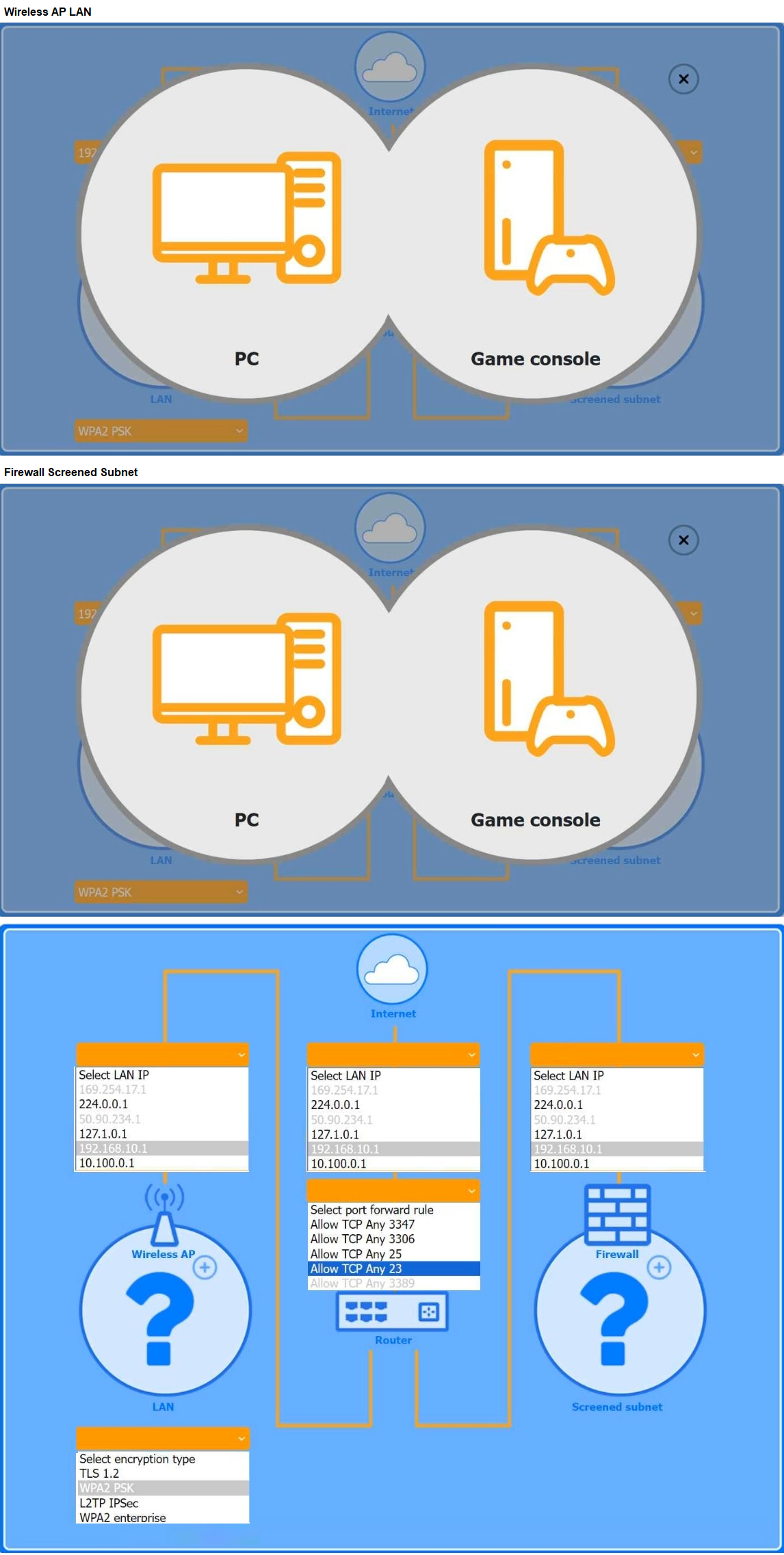
Explanation:
✅ Wireless AP LAN Configuration
Select LAN IP:
→ 192.168.10.1
(This is a common private LAN IP range for a home router.)
Select encryption type:
→ WPA2 PSK
(Standard secure home Wi-Fi encryption.)
✅ Firewall Screened Subnet Configuration
Select LAN IP:
→ 10.100.0.1
(Typically used for separate screened/DMZ subnets to isolate public services.)
Select port forward rule:
→ Allow TCP Any 3389
(Allows RDP traffic for remote access to the Windows PC.)
✅ Device Placement
PC (Windows):
→ Place in Screened subnet (behind firewall).
(This provides secure remote access while isolating the PC from the main LAN for security.)
Game console:
→ Place in Wireless AP LAN.
(Avoids firewall/NAT issues that can block voice chat, matchmaking, and multiplayer features.)
Final Selections
Wireless AP LAN
LAN IP: 192.168.10.1
Encryption type: WPA2 PSK
Screened subnet
LAN IP: 10.100.0.1
Port forward rule: Allow TCP Any 3389
Device Placement
PC → Screened subnet
Game Console → Wireless AP LAN
This configuration ensures:
✅ The PC can be accessed remotely via RDP (TCP 3389).
✅ The game console avoids firewall issues, ensuring all chat and multiplayer features work.
Which of the following is used in addition to a password to implement MFA?
A. Sending a code to the user's phone
B. Verifying the user's date of birth
C. Prompting the user to solve a simple math problem
D. Requiring the user to enter a PIN
Explanation:
Multi-factor authentication (MFA) uses two or more independent factors to verify a user’s identity. Sending a code to the user’s phone is an example of something you have (a possession factor), used alongside a password (something you know). This adds an extra layer of security because even if an attacker knows the password, they would still need access to the user’s phone to receive the code. Methods like SMS codes, authenticator app tokens, or push notifications are common second factors in MFA implementations. Using a separate device helps protect accounts from unauthorized access and significantly reduces the effectiveness of stolen or guessed passwords alone.
Wrong Answers
B. Verifying the user's date of birth
Date of birth is considered knowledge-based information, similar to a password. It’s still just something you know rather than a separate authentication factor. True MFA requires factors from different categories (something you know, have, or are). Relying on personal details like birth dates doesn’t add meaningful security, because such information can often be discovered through social engineering, public records, or social media profiles. While personal questions may help confirm identity in some contexts, they don’t qualify as a separate factor in multi-factor authentication. Using physical devices or biometrics alongside passwords is a more secure MFA approach to protecting user accounts.
C. Prompting the user to solve a simple math problem
A math problem tests user attention or mental capacity but is still something you know rather than a separate factor. It doesn’t satisfy the requirements of multi-factor authentication because it remains a knowledge-based method rather than introducing something you have (like a device) or something you are (biometrics). Simple math problems are sometimes used in CAPTCHA challenges to prove a user is human, but that’s different from MFA, which seeks to confirm a user’s identity using independent factors. Relying on trivial knowledge questions doesn’t add real security because they’re easily solved or automated, and they don’t physically tie authentication to the legitimate user.
D. Requiring the user to enter a PIN
A PIN is essentially a shorter form of a password — it’s something you know. It does not provide a second factor for true MFA unless combined with a possession factor, like unlocking a hardware token or mobile device. For example, a PIN entered into a smart card reader combines something you know with something you have (the card). However, simply entering a PIN alongside a password is still single-factor authentication, because both are knowledge-based. To achieve MFA, there must be two different types of factors, not just multiple passwords or PINs. Sending a code to a separate device is a better approach to implement MFA effectively.
| Page 12 out of 33 Pages |