
While inspecting a recently compromised Linux system, the administrator identified a number of processes that should not have been running:

Which of the following commands should the administrator use to terminate all of the identified processes?
A.
pkill -9 -f "upload*.sh"
B.
kill -9 "upload*.sh"
C.
killall -9 -upload*.sh"
D.
skill -9 "upload*.sh"
pkill -9 -f "upload*.sh"
Summary:
The administrator has identified multiple malicious processes with names matching the pattern "upload*.sh" that need to be terminated immediately. The solution requires a command that can kill multiple processes at once based on a pattern match against their full command line, not just the process name. The -9 signal (SIGKILL) is used to force-terminate processes that are unresponsive.
Correct Option:
A. pkill -9 -f "upload*.sh":
This is the correct command. The pkill command is designed to signal processes based on their name and other attributes. The -f flag is crucial as it allows pkill to match against the full command line, not just the process name. Combined with the -9 signal for a forceful kill and the pattern "upload*.sh", this command will terminate all processes whose command line contains a string starting with "upload" and ending with ".sh".
Incorrect Options:
B. kill -9 "upload*.sh":
The kill command is used to send signals to processes, but it requires a Process ID (PID) or a job specification, not a name or pattern. It does not support wildcards for process names, so this command will fail with an error.
C. killall -9 -upload*.sh":
The killall command terminates processes by name, but it matches the base process name only. It would look for a process named exactly -upload*.sh, which is incorrect. Even with the correct syntax killall -9 upload.sh, it would only kill processes named upload.sh, not other scripts matching the upload*.sh pattern like upload1.sh or upload_backdoor.sh.
D. skill -9 "upload*.sh":
The skill command is an older utility for sending signals to processes. While it can sometimes accept a pattern, its behavior is less consistent and standardized than pkill. The pkill command is the more modern, reliable, and recommended tool for this specific task.
Reference:
Official CompTIA Linux+ (XK0-005) Certification Exam Objectives: This scenario falls under Objective 4.3: "Given a scenario, analyze and troubleshoot application and hardware issues," which includes managing and troubleshooting processes. Knowing how to use tools like pkill and killall to terminate multiple processes efficiently is a key security and administration skill.
A Linux administrator is troubleshooting an issue in which an application service failed to start on a Linux server. The administrator runs a few commands and gets the following outputs:
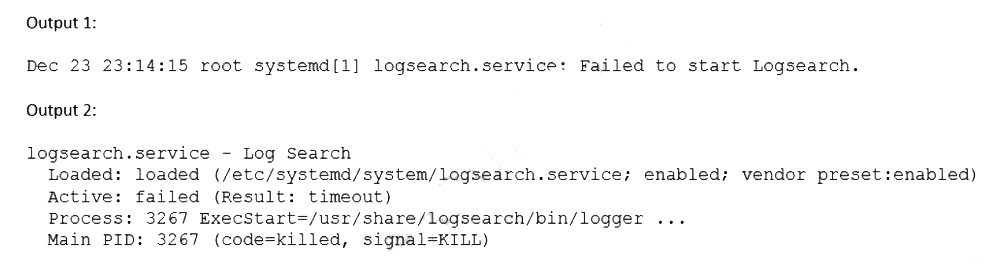
Based on the above outputs, which of the following is the MOST likely action the administrator should take to resolve this issue?
A.
Enable the logsearch.service and restart the service.
B.
Increase the TimeoutStartUSec configuration for the logsearch.sevice.
C.
Update the OnCalendar configuration to schedule the start of the logsearch.service.
D.
Update the KillSignal configuration for the logsearch.service to use TERM.
Increase the TimeoutStartUSec configuration for the logsearch.sevice.
Summary:
The systemctl status output reveals that the logsearch.service failed to start due to a timeout. The journalctl output confirms the service is active but has not yet begun its main operation ("started..."). Crucially, the systemctl show output reveals the service has a very short TimeoutStartUSec=1min 30s and has already been active for ActiveEnterTimestampMonotonic=2min 1s, meaning it has exceeded its startup timeout, causing systemd to kill it. The service needs more time to initialize.
Correct Option:
B. Increase the TimeoutStartUSec configuration for the logsearch.service:
This is the most direct and likely solution. The service is taking longer than the configured 90 seconds to start. The administrator should edit the service unit file (e.g., /etc/systemd/system/logsearch.service) and increase the TimeoutStartSec value (e.g., to 5min) to give the service adequate time to complete its startup routine before systemd intervenes.
Incorrect Options:
A. Enable the logsearch.service and restart the service:
The service is already enabled, as shown by the systemctl status output (Loaded: loaded...; enabled). Enabling it again is redundant and does not address the core timeout issue.
C. Update the OnCalendar configuration to schedule the start of the logsearch.service:
The OnCalendar setting is for timer units, not regular service units. There is no indication this service is triggered by a timer; it is failing when started manually or at boot.
D. Update the KillSignal configuration for the logsearch.service to use TERM:
The KillSignal dictates what signal systemd uses to stop the service. The problem is that the service is being killed because it failed to start within the allotted time, not that it's responding poorly to a stop signal.
Reference:
systemd Official Documentation (systemd.service): The official man page explains the TimeoutStartSec directive and other service timeouts.
An administrator attempts to rename a file on a server but receives the following error.
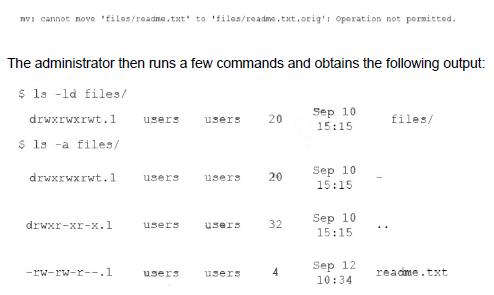
Which of the following commands should the administrator run NEXT to allow the file to be renamed by any user?
A.
chgrp reet files
B.
chacl -R 644 files
C.
chown users files
D.
chmod -t files
chmod -t files
Summary:
The administrator cannot rename a file despite having write permission to the directory. The ls -l output shows the directory has a t flag in the permissions (drwxrwxrwt), which is the sticky bit. In a directory, the sticky bit restricts file deletion and renaming so that only the file's owner, the directory's owner, or root can remove or rename files, even if other users have write access to the directory. This is the cause of the "Operation not permitted" error.
Correct Option:
D. chmod -t files:
This command removes the sticky bit from the files directory. The -t flag in chmod removes the sticky bit permission. Once this is done, any user with write access to the directory will be able to rename files within it, resolving the issue.
Incorrect Options:
A. chgrp reet files:
This command tries to change the group ownership of the directory to reet. The group is already reet, so this changes nothing. Furthermore, the problem is not group ownership but the special directory permission (sticky bit).
B. chacl -R 644 files:
This command is for managing Access Control Lists (ACLs), not standard permissions. The 644 mode is for files, not directories, and would remove execute permission, breaking the directory's functionality. It does not address the sticky bit.
C. chown users files:
This command changes the ownership of the directory to the user users. The current owner is root, and changing it is unnecessary and could have unintended consequences. The root cause is the sticky bit, not the ownership.
Reference:
Linux man-pages project (chmod): The official documentation explains the special permissions, including the sticky bit (t).
A Linux administrator is scheduling a system job that runs a script to check available disk space every hour. The Linux administrator does not want users to be able to start the job. Given the following:
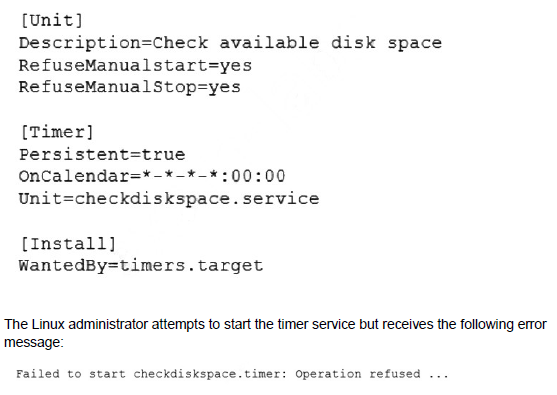
Which of the following is MOST likely the reason the timer will not start?
A.
The checkdiskspace.timer unit should be enabled via systemctl.
B.
The timers.target should be reloaded to get the new configuration.
C.
The checkdiskspace.timer should be configured to allow manual starts.
D.
The checkdiskspace.timer should be started using the sudo command.
The checkdiskspace.timer should be configured to allow manual starts.
Summary:
The administrator created a systemd timer unit but cannot start it manually, receiving a "Operation not permitted" error. The key detail is the requirement that "users" should not be able to start the job. This points to a specific configuration within the timer unit file itself that restricts who can control the unit, overriding the user's attempt to start it even with sudo.
Correct Option:
C. The checkdiskspace.timer should be configured to allow manual starts:
The most likely reason is that the [Unit] section of the checkdiskspace.timer file contains the directive RefuseManualStart=yes. This setting explicitly prevents the timer from being started manually by a user (even with sudo), which aligns with the administrator's requirement. The timer is designed to only be triggered by its defined schedule or by the activation of a dependent unit, not by user intervention.
Incorrect Options:
A. The checkdiskspace.timer unit should be enabled via systemctl:
The systemctl enable command configures a unit to start at boot. The error occurs when trying to start the unit (systemctl start), not enable it. Enabling it would not resolve a manual start restriction.
B. The timers.target should be reloaded to get the new configuration:
The systemctl daemon-reload command is used to reload unit files after they are created or modified. The output shows the administrator already performed this step successfully, so it is not the cause of the current error.
D. The checkdiskspace.timer should be started using the sudo command:
The output clearly shows the administrator is already using sudo when attempting to start the timer (sudo systemctl start checkdiskspace.timer). The problem is a configuration within the unit file that refuses manual starts, not a lack of privileges.
Reference:
systemd Official Documentation (systemd.unit): The official man page describes the RefuseManualStart option, which can be used to prevent manual control of a unit.
One leg of an LVM-mirrored volume failed due to the underlying physical volume, and a systems administrator is troubleshooting the issue. The following output has been provided:

Given this scenario, which of the following should the administrator do to recover this volume?
A.
Reboot the server. The volume will automatically go back to linear mode.
B.
Replace the failed drive and reconfigure the mirror.
C.
Reboot the server. The volume will revert to stripe mode.
D.
Recreate the logical volume.
Replace the failed drive and reconfigure the mirror.
Summary:
One leg of an LVM mirrored volume has failed, as indicated by the pvs output showing /dev/sdc1 has an Unknown Device status. The lvs output confirms the myvol logical volume is only partially available (6.00g of 10.00g). A mirrored volume maintains identical copies of data on multiple physical volumes. When one copy fails, the data remains accessible from the remaining good leg, but redundancy is lost. The volume cannot automatically repair itself.
Correct Option:
B. Replace the failed drive and reconfigure the mirror:
This is the correct recovery procedure. The administrator must:
Physically replace the failed drive (/dev/sdc).
Create a new partition on the replacement disk.
Add the new partition as a physical volume (pvcreate).
Add the new PV to the existing volume group (vgextend).
Rebuild the mirror by replacing the failed segment in the logical volume (lvconvert --repair).
Incorrect Options:
A. Reboot the server. The volume will automatically go back to linear mode:
Rebooting will not fix the underlying hardware failure or automatically reconfigure the LVM metadata. The device will still be missing after a reboot, and the volume will remain in its current degraded state.
C. Reboot the server. The volume will revert to stripe mode:
LVM does not automatically change a mirror to a stripe (RAID 0) layout. A stripe set would require a different initial configuration and would not provide the redundancy of a mirror.
D. Recreate the logical volume:
This would involve deleting the existing logical volume (lvremove) and creating a new one. This action would destroy all the data on the volume. Since one leg of the mirror is still functional, the data is accessible and should be preserved, not recreated.
Reference:
LVM2 Resource Page (lvconvert): The official documentation explains how to use lvconvert to repair and manage mirrored volumes.
Junior system administrator had trouble installing and running an Apache web server on a Linux server. You have been tasked with installing the Apache web server on the Linux server and resolving the issue that prevented the junior administrator from running Apache.
INSTRUCTIONS
Install Apache and start the service. Verify that the Apache service is running with the defaults.
Typing “help” in the terminal will show a list of relevant event commands. If at any time you would like to bring back the initial state of the simulation, please click the Reset All button.
Summary:
The task requires installing the Apache HTTP server, starting the service, and verifying it's running properly with default configurations. The solution involves using package management commands specific to the Linux distribution, followed by service management commands to enable and verify the web server.
Correct Procedure:
Install Apache HTTP Server:
On RHEL/CentOS/Fedora systems:
bash:
sudo dnf install httpd
or
bash:
sudo yum install httpd
On Debian/Ubuntu systems:
bash:
sudo apt update
sudo apt install apache2
Start the Apache Service:
On RHEL/CentOS/Fedora:
bash:
sudo systemctl start httpd
On Debian/Ubuntu:
bash:
sudo systemctl start apache2
Enable Apache to Start Automatically at Boot:
On RHEL/CentOS/Fedora:
bash:
sudo systemctl enable httpd
On Debian/Ubuntu:
bash:
sudo systemctl enable apache2
Verify Apache Service Status:
On RHEL/CentOS/Fedora:
bash:
sudo systemctl status httpd
On Debian/Ubuntu:
bash:
sudo systemctl status apache2
Check if Apache is Listening on Default Port:
bash:
sudo ss -tulpn | grep :80
or
bash:
sudo netstat -tulpn | grep :80
Test with curl or wget:
bash:
<
curl http://localhost
or
bash:
wget http://localhost
Troubleshooting Common Issues:
Firewall Configuration:
bash:
# On RHEL/CentOS/Fedora with firewalld
sudo firewall-cmd --permanent --add-service=http
sudo firewall-cmd --permanent --add-service=https
sudo firewall-cmd --reload
SELinux Issues (RHEL/CentOS):
bash:
# Check SELinux status
sudo getenforce
# Temporarily set to permissive if needed
sudo setenforce 0
Check Apache Configuration:
bash:
sudo apachectl configtest
Reference:
Apache HTTP Server Documentation: Official documentation for installation and configuration.
https://httpd.apache.org/docs/
Since this is a simulation environment, you can type "help" as mentioned to see available commands, and use the specific package manager and service names that match your simulated Linux distribution. The key is to identify whether the simulation is using a Red Hat-based or Debian-based system and use the appropriate commands accordingly.
| Page 15 out of 48 Pages |
| XK0-005 Practice Test | Previous |